Mail Forwarding
Mail Forwarding explains how inbound email can be routed into Emakin channels so that incoming messages create or update cases automatically.
With mail forwarding, Emakin:
- can create new cases from incoming email
- tracks email threads
- links new email to an existing open case when the thread matches
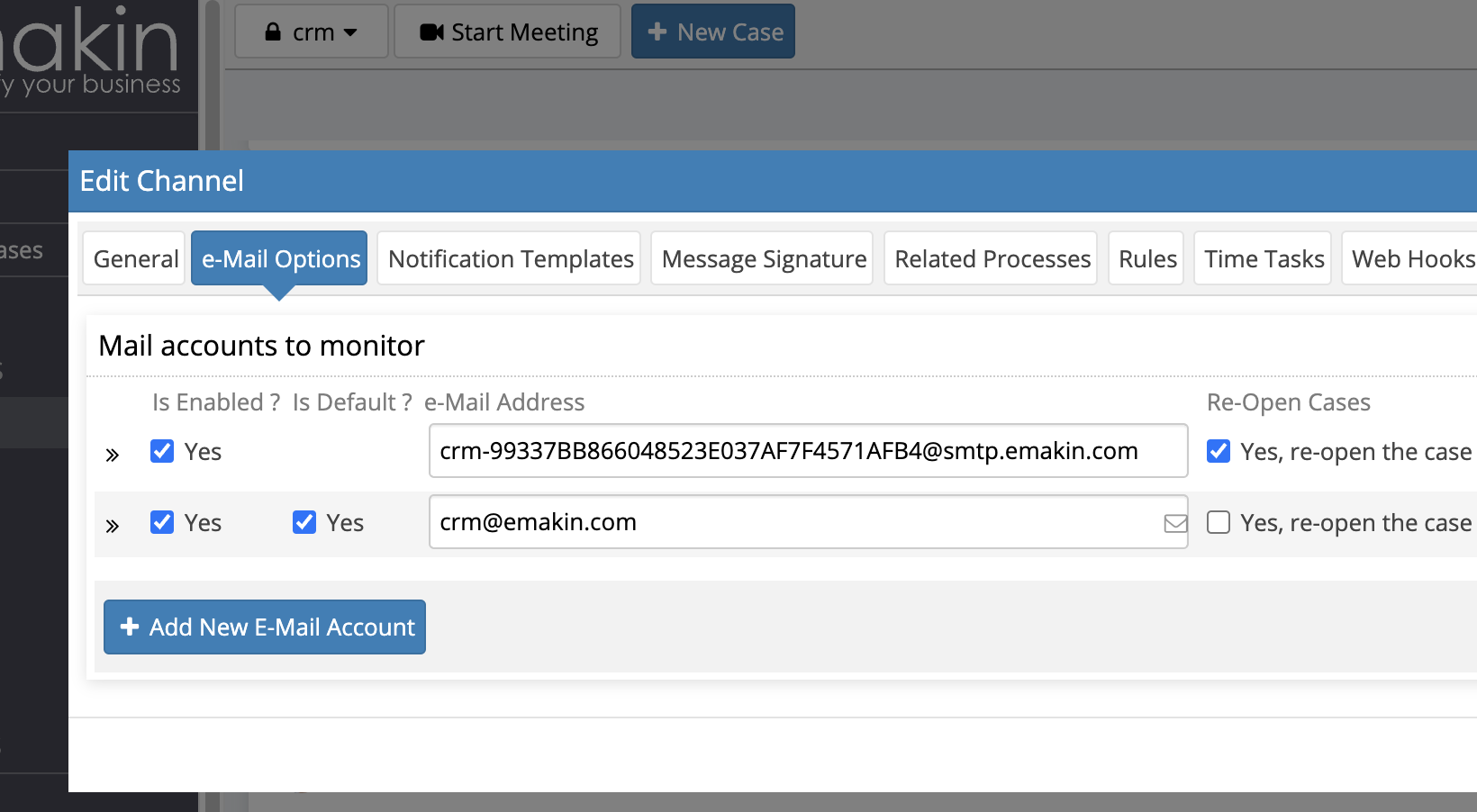
The channel email options are available from the channel Edit dialog.
Channel Addresses
Channels can use:
- an auto-generated forwarding address
- an optional custom email address
Example address formats:
- generated:
[email protected] - custom:
[email protected]
DNS / MX Setup
If a new SMTP subdomain is used for forwarding, add an MX record in DNS.
Typical DNS setup flow:
- open the DNS management panel
- create the mail-forwarding record under the configured incoming-mail domain
- point it at the Emakin application hostname
- set the type to
MX - save the configuration
If the mail server is hosted internally, an internal MX record may be sufficient.
Verify SMTP Availability
Before forwarding email into Emakin, verify that the SMTP service is listening on ports such as 25, 465, or 587.
Connection-check example:
1 | |
The current page includes a full sample response showing a successful SMTP handshake.
Send a Test Message
Test-send example:
1 2 3 4 5 6 7 8 9 10 11 12 | |
Warning: The
--mail-rcptvalue must be changed to a real channel email address or the message will be rejected.
Google Gmail Forwarding Example
A typical Gmail routing workflow is:
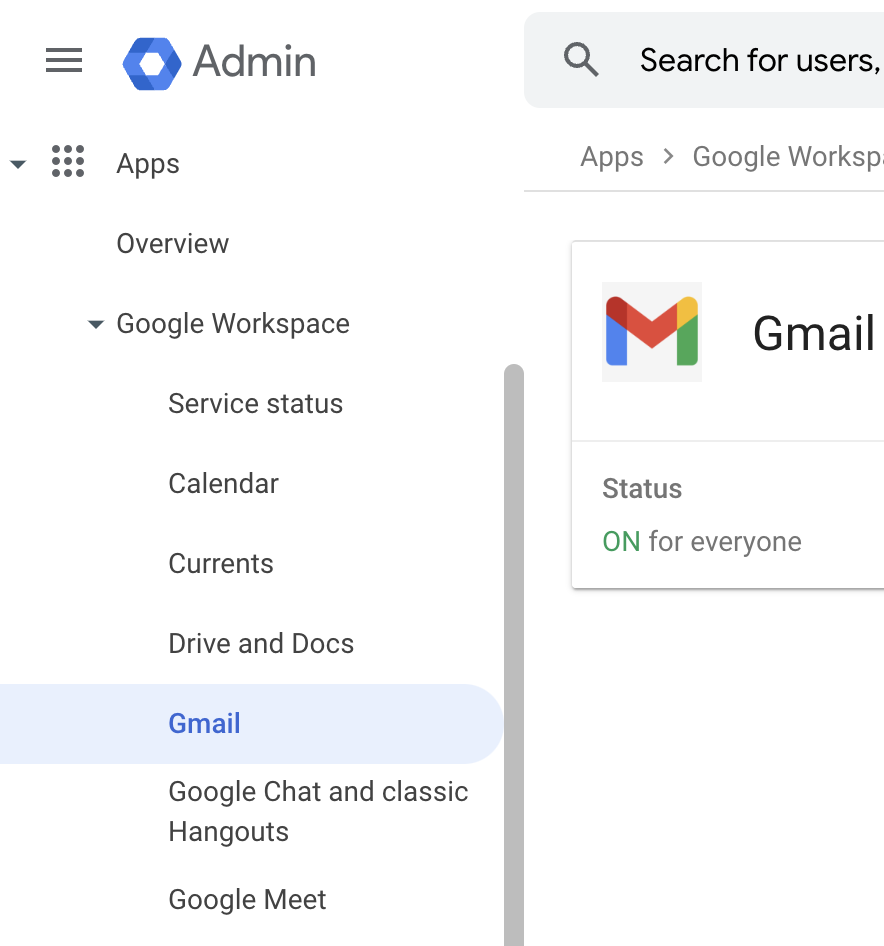
- open
admin.google.com - choose GMail under Google Workspace
- open the Routing section
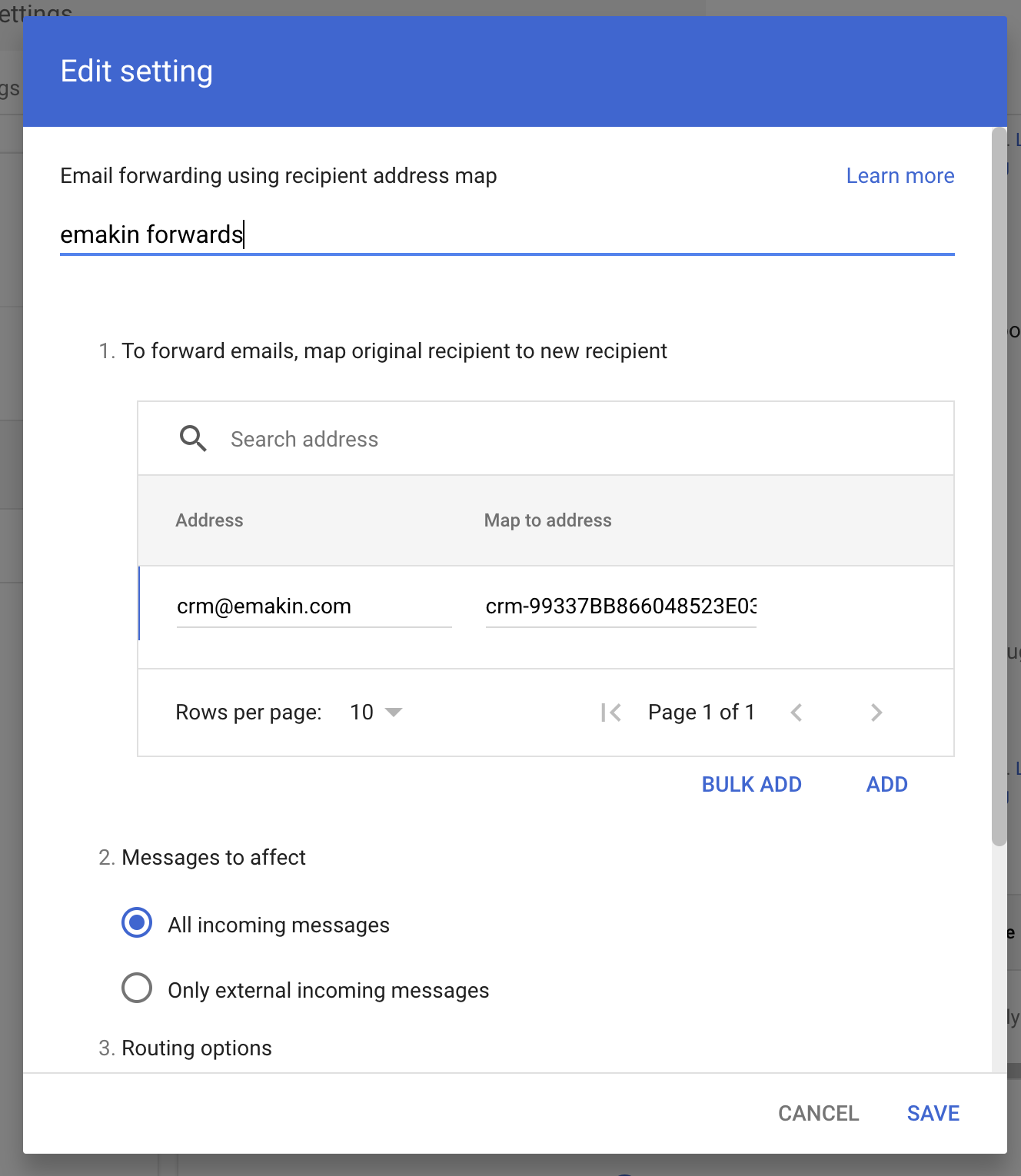
- find Email forwarding using recipient address map
- select ADD RULE
- name the rule
- map the public address to the generated Emakin channel address
- add more channel mappings if needed
- select All incoming messages
- save the rule