Edit Domain
Edit Domain contains the domain-level settings for appearance, calendars, localization, artificial intelligence, integrated services, login behavior, API keys, security profiles, IP restrictions, password policy, and outbound email.
Use this page when a change should affect one domain rather than every domain in the application. The process requires the domain_write scope.
Select Save after making changes. Some domain settings inherit application-level values. The meaning of Use Default depends on the setting and is described in the relevant section below.
Quick Routing
Use the matching section based on the kind of change you need:
- go to Appearance for theme, light or dark logo, background image, or CSS changes
- go to Calendars for working-time, lunch-break, and holiday rules
- go to Localization to translate folder, channel, and dashboard text for each language
- go to AI to configure AI providers, MCP token limits, Ema instructions, and skills
- go to Security for integrated services, login behavior, API keys, security profiles, IP restrictions, and password policy
- go to Email for mail actions, OAuth-based email services, and SMTP connections
If the question is mainly about how scopes, groups, ACLs, and API keys fit together, start with Security and Permissions.
Appearance
Use this section to control how the domain looks to users.
Theme
Sets the default color theme for the domain. If the saved theme is empty or is no longer available on the host, Emakin uses the Clean theme.
Light Logo and Dark Logo
Light Logo is used as the normal domain logo. Dark Logo is used in dark mode. If no dark logo is configured, Emakin uses the light logo in dark mode as well. If no applicable domain logo exists, Emakin uses its built-in light or dark logo.
Replacing a logo updates the file reference used by the domain and removes the previous logo file.
Background Images
Adds one or more images for domain surfaces that support a background image. Only entries with a successfully uploaded file are used. Use Add Background Image to upload another image.
CSS
Adds custom CSS that can extend or override the selected theme. Test custom CSS against the domain's supported themes and screens before making it available to all users.
Calendars
Calendars define working time and holiday behavior used for task reminder and deadline calculations. You can create more than one named calendar.
Name of Calendar
Friendly name used to identify the calendar.
Working Days
Selects which days from Monday through Sunday are treated as working days.
Working Hours
Defines the start and end of the active working window.
Lunch Break
Optionally defines a second start and end time for the daily lunch break.
Annual Holidays
Defines recurring excluded date ranges. The year in the entered dates is ignored, so the exclusion is applied every year. Each entry contains a Date Range and an optional Description.
Holidays
Defines fixed, non-recurring excluded date ranges. Each entry contains a Date Range and an optional Description.
Localization
Use this section to localize the names of the domain's folders and channels, along with dashboard panel and link titles. The original text remains the source value. Users see the localized value when their selected language has a translation; otherwise, Emakin displays the original source text.
Language
Add a language entry and select its language code. The editor lists neutral language codes such as en and tr, not region-specific codes such as en-US or tr-TR. Each language has its own list of translations. Duplicate entries for the same language are removed by the editor.
Source Text and Localized Text
The source list is collected automatically and contains only these supported properties:
- folder captions, shown with a folder icon
- names of non-direct channels, shown with a
#icon - dashboard item titles from domain and application screen definitions, shown with a text icon
- dashboard link titles from domain and application screen definitions, shown with a text icon
Source Text is the caption, name, or title stored on the related object. Localized Text is a culture-specific display override; it does not rename or modify the underlying folder, channel, dashboard item, or dashboard link. For example, the folder caption Invoices can be displayed as Faturalar to Turkish users while its source caption remains unchanged.
When resolving a regional culture, Emakin checks that culture first and then its parent cultures. For example, a user with the culture tr-TR can receive the translation defined for tr. If no matching localized value is found, Emakin displays the original source text.
The editor also:
- highlights an empty localized value so that missing translations are easy to find
- shows an automatic translation below the localized value; select it to copy the suggestion into the editable field
Use Edit to change translation values. Use Details to expand or collapse the translation list for a language. Clearing a localized value and saving deletes that localization entry, so users fall back to the original source text.
AI
Use this section to configure AI services and assistant behavior for the current domain.
Services
The list contains application providers and any providers added specifically to the domain. Supported client types in the editor are OpenAI, OpenRouter, Claude, and Ollama.
Application and domain providers are matched by Client Type, without regard to letter casing. For a matching provider, domain values override application values field by field. An empty domain Name, Base URL, API Key, or Model uses the application value. An unspecified Enabled, Context Length, or Input Modalities value also uses the application value. Application providers without a domain override remain available, and domain-only providers are appended to the effective provider list.
The available settings are:
- Client Type
- Enabled: Use Default, Yes, or No
- Name
- Base URL
- API Key
- Model
- Context Length
- Input Modalities: Text, Image, and Audio
An effective provider is usable only when it is not disabled and has an API key. Operations that request a single provider use the first usable provider in the effective provider order.
Use a unique Client Type unless multiple effective providers of that type are intentional. When duplicate domain rows match an application provider, the first domain row supplies the application override and later duplicate rows are appended as additional domain providers.
Token Limits
Defines MCP token usage limits for the domain. A rule can target a user, a group, or the whole domain. A user rule takes precedence over a group rule.
Configure each rule with:
- Target: select a user or group, or leave empty for a domain-wide rule
- Context Surface: required; User or Development
- Maximum Tokens: required and must be zero or greater
- Duration: the period over which the limit is measured
- Enabled: whether the rule is active
New rules are enabled and use a one-month duration by default. Only one enabled rule is allowed for the same target and context surface.
Instructions
Defines additional system instructions for the Ema assistant. Add one or more instruction entries and configure each entry with:
- Context: required; User, Development, or Admin
- Instruction: multiline plain text; rich-text formatting is not used
- Enabled: whether the instruction is active
New instruction entries are enabled by default. Enabled instructions whose context matches the current assistant context are appended to the main executor system prompt in the order shown. User requests and document contents remain separate inputs and are not treated as domain instructions.
Skills
Defines task-specific procedures for Ema in the current domain. General Instructions apply continuously in their selected context; a skill's full task instructions are loaded when Ema or the user selects that skill for a task.
Use User context for everyday workflow assistance and Development for process-definition work. Users can select an enabled skill by typing / at the start of a message, choosing its command, and adding their request. Skills provide guidance within existing permissions and Safe Mode; they do not add tools or enforce workflow rules.
See Ema Skills for the concept, configuration fields, examples, and troubleshooting.
Security
Integrated Services
Integrated services provide login, file-access, or calendar-sharing capabilities. The application administrator defines the available services; the domain administrator controls how eligible services are used in this domain.
Application-level services that use a service account are not included in the domain-editable integrated-service list. An application-level service that is disabled cannot be re-enabled by the domain.
For an available service, Enabled has these meanings:
- Use Default: use the application-level enabled state
- Yes: enable the service for this domain
- No: disable the service for this domain
The domain can override Base URL, Client ID, Client Secret, Service Account ID, and Service Account Key. Empty domain values fall back to the corresponding application values.
Login
The login list is synchronized with login methods defined at application level. A domain can configure an available method but cannot create an independent login provider from this page. Login entries that no longer exist in the application configuration are removed during synchronization, and the application-defined service mapping remains authoritative.
Security Options
Use Single Session controls whether signing in invalidates sessions on other devices:
- Use Default: inherit the application setting
- No: allow multiple sessions on multiple devices
- Yes: enforce one session and sign out sessions on other devices
New Device Notification controls security alerts for a new device or IP address:
- Use Default: send notifications; this currently resolves to enabled rather than inheriting another application setting
- No: do not send a notification
- Yes: send a security alert when a new device or IP address is detected
Notifications are not sent to anonymous or external users, or to users without an email address.
Login Services
At least one login method must be enabled. Each available method provides:
- Enabled: Use Default, Yes, or No
- Two-factor authentication method: select None, SMS, Email, or Authenticator app for this service
- Update User Information: inherit or override whether user information is refreshed from the identity provider
- Auto Register: automatically register authenticated users
- Auto Register To Group: place automatically registered users in the selected group
Application-level availability still applies: a login method disabled or unavailable at application level cannot be made usable only by changing the domain setting.
Each login service has its own second-factor selection; there is no domain-wide method selector. None disables additional verification for that service. The other choices are limited to methods allowed in Host Administration → Security → Sessions. Passkey sign-in does not request an additional second factor, and its method selector is hidden.
Before selecting SMS, configure an SMS service and check users' profile mobile numbers. Users without a number are prompted to enter and verify one during sign-in. Email requires an email service and a profile email address. Authenticator app guides users through setup on first use.
Method changes apply to subsequent sign-ins and do not terminate existing authenticated sessions. A verification already in progress may need to be restarted. Switching from Authenticator app to SMS and back preserves the user's completed authenticator setup, so the user can continue using the same app entry unless that setup has been reset. To verify a change, use a separate browser session to sign in through the affected service and complete the expected verification step. To stop requiring a second factor for that service, select None and save.
For the user workflow, see Accessing Emakin.
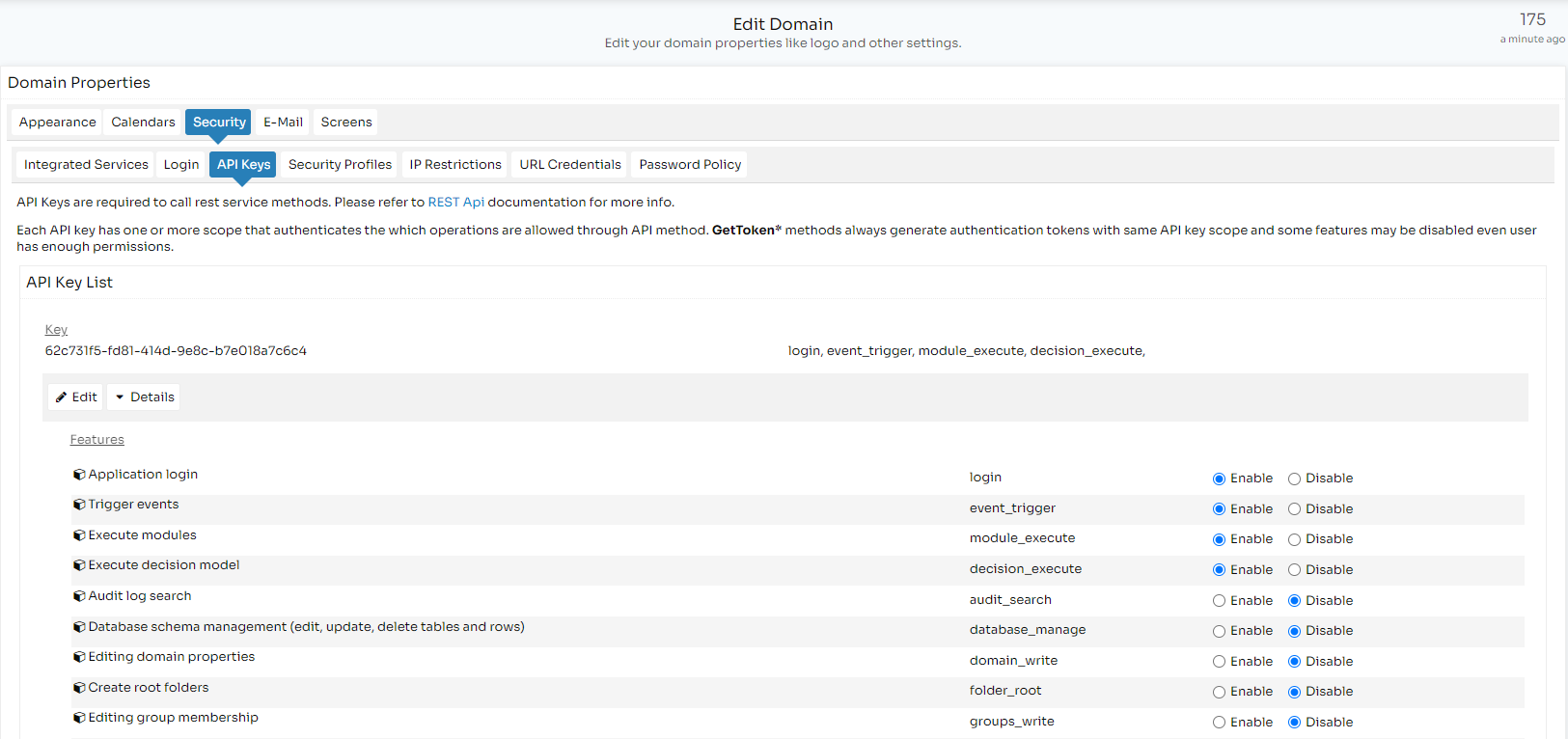
API Keys
API keys authenticate calls to Emakin REST services. Use an API key when an external caller should receive a limited feature and scope set without an interactive user login.
Each API key includes:
- the generated key value, which can be copied from the preview
- Description, used to record the purpose of the key
- Features, which enable the permitted API scopes and product features
- Auth Storage, which controls where a browser session obtained with the key is stored
The available feature list is synchronized with the supported token-scope catalog. Existing enabled states are kept for scopes that still exist; obsolete or unsupported scope entries may be removed. GetToken* methods create tokens with the scopes assigned to the API key, so a feature can remain unavailable even when the authenticated user would otherwise have permission.
The Auth Storage options are:
- Local Storage: retain the session in the browser until logout or expiration
- Session Storage: retain the session only until the browser window is closed; this is the default
Security Profiles
Security profiles provide reusable access-control lists for folders, processes, documents, and other secured content. When an entry is added to or updated in a profile, permissions on objects that inherit that profile are updated.
If the domain has no default security profile, Emakin creates one with these entries:
- domain administrator: All
- everyone: Read
The default profile can be edited but cannot be deleted. Additional profiles can be created and deleted.
Each profile has a required Name and an Access Control List. An ACL entry contains:
- Identity
- Permissions: Read, Execute, Only Write, Read & Write, Change Security, or All
- Type: Allow or Deny
- Begins At
- Expires At
Warning: Incorrect changes to administrative permissions can remove all administrative access and may require a database-level reset. Verify that an administrator retains access before saving restrictive ACL changes.
IP Restrictions
IP restrictions limit domain access to the listed IP addresses or ranges. Each added IP Range value is required. Supported formats include:
- single IP, such as
192.168.1.10 - explicit range, such as
192.168.1.10-192.168.1.255 - CIDR notation, such as
192.168.0.0/24 - subnet-mask notation, such as
192.168.0.0/255.255.255.0
Warning:
127.0.0.1is always allowed. Be careful not to remove your own remote access unintentionally.
Password Policy
The domain password policy is enforced whenever a password is created or changed. It contains:
- Minimum Password Length
- Minimum Numeric (0..9) Letters
- Minimum Upper Case (A..Z) Letters
- Minimum Lower Case (a..z) Letters
- Required Chars: the password must contain at least one character from this value
Each field inherits independently from the application password policy. A numeric value of 0 inherits the application value; an empty Required Chars value also inherits the application value. Consequently, an inherited requirement cannot be disabled at domain level merely by entering 0 or clearing the field.
Email
This section controls mail actions and the domain-specific services used for outbound messages such as reminders and deadline notifications.
Email Actions
Controls whether supported actions on assigned tasks are included in email messages:
- Use Default: inherit the application-level Email Actions setting
- Yes, use mail actions: include supported task actions
- No, use only web: require the user to open Emakin to perform the action
Mail actions are generated only when an incoming mail domain is also configured at application level.
e-Mail Services
Defines OAuth-based mail services. These services are attempted before SMTP connections. Configure each service with:
- Is Enabled
- Client Type: currently Office365
- Service: the integrated service that supplies authorization
- Name
- Service Identity
- Scopes: leave empty to request read-only access
When a service identity is specified, its email domain must match the sender's domain for that service to be selected. If the domain has no enabled OAuth-based mail service, enabled application-level mail services are used. Multiple enabled services may be tried in order until one sends the message successfully.
SMTP Connections
SMTP is attempted when the OAuth-based services do not send the message. Configure each connection with:
- Enabled
- From Address: required
- From Display Name
- Host: required
- Port: leave empty or use
0for the default port - User Name
- Password
- Enable SSL
New SMTP configurations are enabled and use SSL by default. If the domain has no enabled SMTP connection, Emakin uses enabled application-level SMTP connections. Multiple enabled SMTP connections may be tried; the configuration is not restricted to a single enabled entry.
Settings Managed Elsewhere
Some properties stored with the domain are intentionally not edited on this page:
- domain screens and navigation are managed through Edit Screens
- a domain-level SSL override exists in stored configuration and is used when constructing domain URLs, but it is not exposed by the Edit Domain form; application and host SSL settings are managed by the system administrator
- internal registration state is not an Edit Domain setting