Reference and Interface Overview
Use this section when you need a stable orientation reference for the Emakin web interface rather than a task-focused walkthrough.
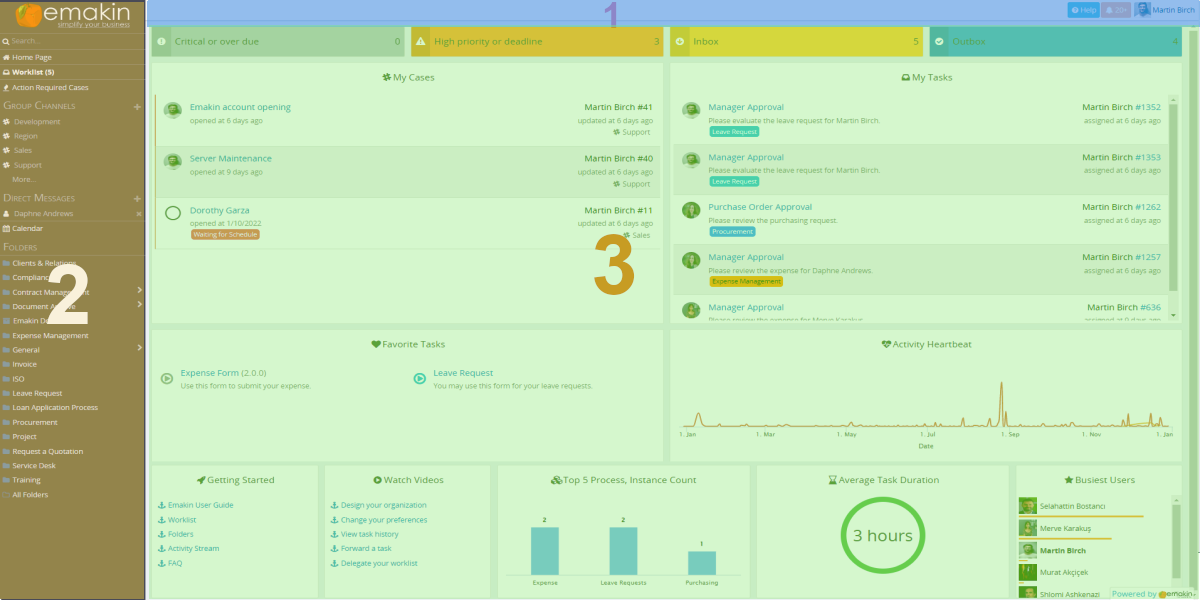
Main Areas
1. Top Bar
The top bar stays visible while you work. It gives you quick access to your user menu, notifications, help, and other context-sensitive actions related to the page currently open in the workspace.
2. Navigation Panel
The navigation panel on the left is the main way to move around Emakin. It can include links such as Home Page, Worklist, Channels, Direct Messages, Calendar, Folders, and Market.
Note: Your organisation may hide or add items based on your permissions and installed modules.
3. Workspace
The workspace is the central content area. When you open a task, form, dashboard, case, or document, it appears here. The tools shown in the workspace change according to the item you are currently using.