Folders
Folders organise related processes or documents in Emakin. Use them when you want to start a process, browse grouped resources, or open a document area that belongs to a business function.
Browsing Folders
Open Folders from the navigation icon strip. Use the arrow beside a folder to expand or collapse its child folders without changing the workspace. Select the folder name to open its processes, documents, or dashboards in the workspace.
You can expand several levels of the hierarchy. On a phone or tablet, opening a folder in the workspace closes the navigation drawer; reopen it to continue browsing the tree.
If you can create top-level folders, the New Folder button appears in the Folders panel heading. Folder administration still depends on the permissions described below.
Starting a New Process
After selecting a folder from the navigation menu, Emakin lists the processes you are allowed to start from that folder.

To start a process:
- Open the relevant folder.
- Review the processes shown in the workspace.
- Select the process you want to start.
Result: A new process instance opens in the workspace.
Note: Some processes may be hidden because they are disabled or because you do not have permission to access them.
Managing a Folder
Folder creation, renaming, deletion, and permission changes are administrative operations. Their availability depends on both the relevant feature and object permissions; being able to start a process is not permission to administer its folder.
For document collections, see Access and Folder Administration. For processes, see Relationship Between Folders and Process Design Permissions.
Folder deletion requires Delete permission and is blocked when child folders or processes remain. It is not a shortcut for deleting all documents or processes. If the goal is to limit visibility, have an administrator review access rules.
Permission Levels
Folder permissions include Read, Write, Execute, Delete, Security, and All. Use the administrator operation matrix to match the required permission to a document or folder operation.
Access Control Details
An administrator reviews identities, allow/deny rules, security-profile inheritance, and the optional Begins At and Expires At dates. See folder and document access rules.
Dashboard and Report
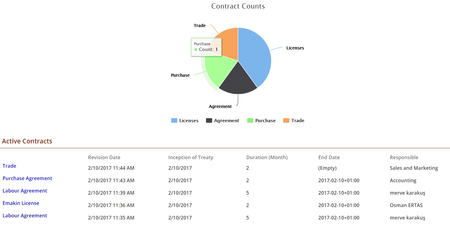
Some folders provide dashboards or reports designed for a specific process.
Dashboard
Dashboards summarise important data visually and give a quick overview of the running process.
Report
Reports show detailed process information and can often be exported to Excel after choosing the required criteria.
See Reports for instructions on opening a report and working with filters, grouping, pivot views, and charts.
For design and configuration details, see the advanced guide on process screens and reports.