Insert Emakin Links to Forms or Reports
Scenario
Use this approach when a form or report should link directly to a work item, case, or document that already exists in the system.
What You Will Learn
- build links for work items, cases, and documents
- bind target identifiers and visible labels from process data
- preserve normal authorization checks when opening linked objects
Difficulty and Estimated Time
- Difficulty: Beginner
- Estimated time: 10 minutes
Assumed Knowledge
You should be familiar with form widgets and the data paths that contain the target identifier and display value.
Required Reading
Prerequisites
- access to the form designer
- the identifier and display value you want to expose for the linked item
Steps
Identify the Target Value
- Determine the Emakin item that the user should open:
- work item
- case
- document
- Capture the unique identifier that will be used in the link.
- Decide which human-readable value should be shown as the clickable label.
As a practical pattern:
- use the case number as the visible label and the case ID in the URL
- use the form number as the visible label and the work item ID in the URL
- use the file name as the visible label and the file ID in the URL
Add an HTML Control
- Open the form you want to edit.
- Insert an HTML control where the link should appear.
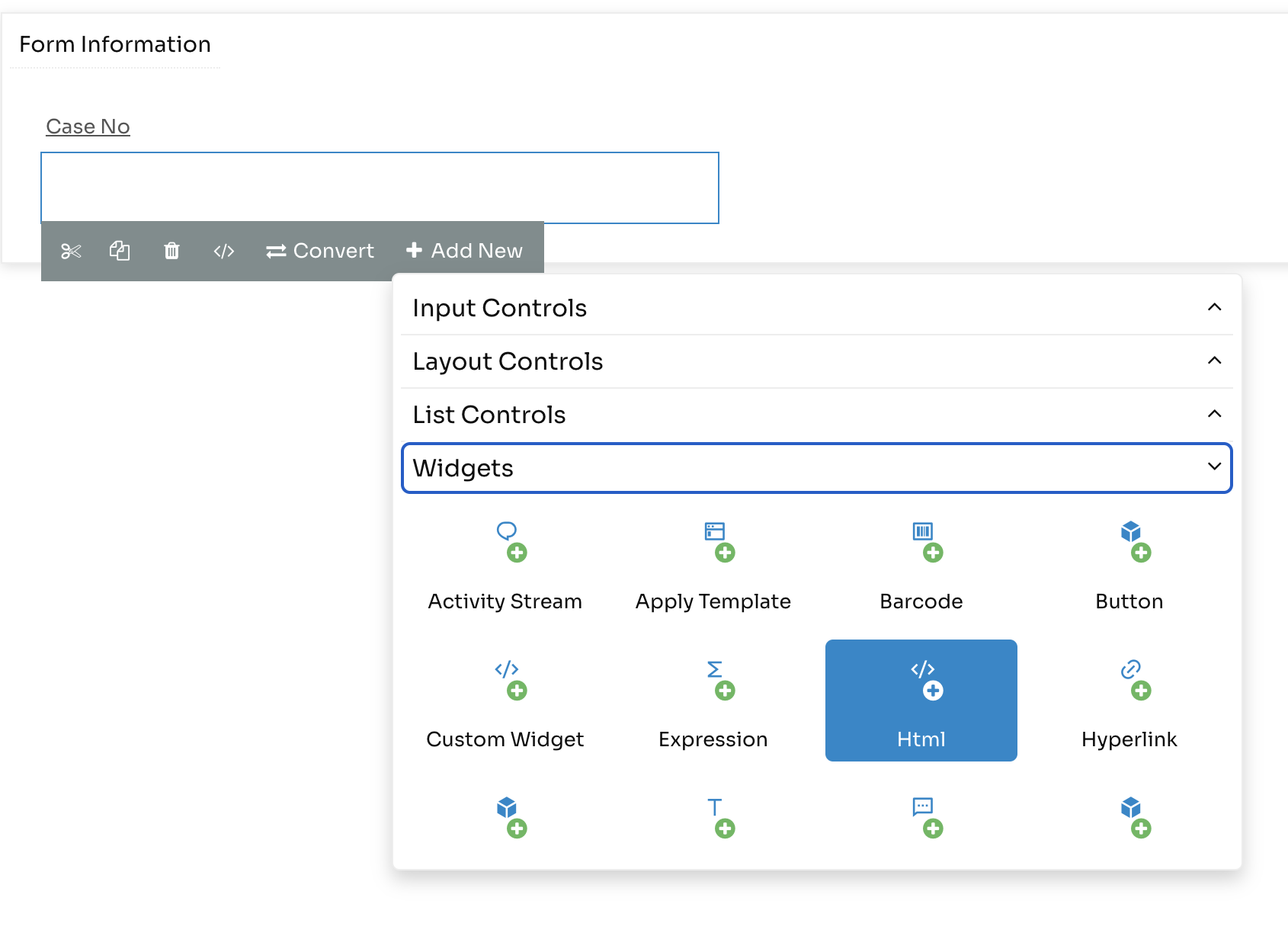
Insert the Link Markup
Inside the HTML control, use one of the following patterns.
Work item link
1 2 3 | |
Case link
1 2 3 | |
Document link
1 2 3 | |
Replace the placeholders with values from your own data model:
{{WorkItemId}},{{CaseId}},{{FileId}}for the target identifier{{FormNo}},{{CaseNo}},{{FileName}}for the visible text
Save and Test
- Save the form.
- Open the runtime form or report.
- Verify that the link opens the expected Emakin item in a new tab.
Result
The form or report now renders a direct Emakin link that opens the selected work item, case, or document.
Verify the Result
Open the rendered link as an authorised test user and confirm that it targets the intended entity. Repeat as a user who does not have access and confirm that the target remains protected.
Security and Portability Notes
- A link does not grant access; the target entity must still enforce its normal authorization rules.
- Generate markup with the supported HTML helpers and do not concatenate untrusted labels or URLs into raw HTML.
- Build links from runtime identifiers instead of tenant hostnames copied from another environment.
Notes
- Keep the visible label meaningful so users understand what they are opening.
- Make sure the target user has permission to view the linked work item, case, or document.
- Keep link patterns consistent across forms and reports so navigation feels predictable.
Troubleshooting
- If the link does not open the expected item, verify that the identifier is stored in the correct XML node.
- If users receive an access error, confirm they can already open that work item, case, or document directly.