Generate Worklist Tags from Form Data
Scenario
Use this example when work items should be categorised automatically with tags so they are easier to find and filter in the worklist.
What You Will Learn
- add fixed tags during task prework
- derive tags from repeating form data in postwork
- verify the resulting tags in the worklist
Difficulty and Estimated Time
- Difficulty: Intermediate
- Estimated time: 20 minutes
Assumed Knowledge
You should be familiar with process forms, XML paths, prework, and postwork scripts.
Required Reading
Prerequisites
- permission to create a folder and process
- access to process forms and task scripting
- a test user who can start the process and inspect the worklist
Steps
Create the Folder and Process
- Create an application folder, for example
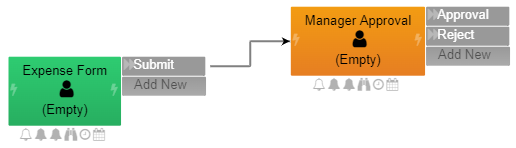
Expense Form. - Create a process in that folder and open it in edit mode.
Build the Tasks
- Rename the opening task to
Expense Form. - Add the
Submitaction. - Create the approval task and add
ApproveandRejectactions. - Route
Rejectback to the first task.
Design the Form
- Create the form for the opening task.
- Add a row-content layout.
- Add a table-content control for the list of expenses.
- Add a static list so the user can choose values such as
Travel,Hotel, orTicket.

Option 1: Add Static Tags in Prework
If the same tags should appear every time the process starts, use the opening task prework:
1 | |
Use this option when the process should always be grouped under the same fixed tags.
Option 2: Add Dynamic Tags in Postwork
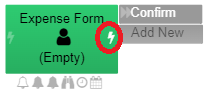
If the tags should come from submitted form data, use the task postwork:
1 2 3 | |
Use this option when the selected values in the form should become searchable worklist tags.
Save and Test
- Commit the process changes.
- Start the process from the folder.
- Submit the form once with static tagging enabled, then again with dynamic tagging enabled.
- Open the worklist and compare the resulting tags.
Result
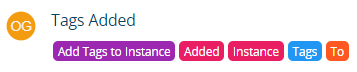
The process now adds tags either statically or dynamically, and those tags appear in the worklist for filtering and review.
Verify the Result
Start instances with two different form values and confirm that each work item shows the expected tag. Test an empty value and confirm that it does not create a blank or misleading tag.
Security and Portability Notes
- Tags are visible worklist metadata. Do not place secrets or unnecessary personal data in them.
- Derive tags from validated values and keep the vocabulary stable when reports or filters depend on it.
- The example uses no tenant-specific identifiers; adapt only the XML paths and labels required by your process.