Create and Complete a Case Milestone
Scenario
Use this example when a case should measure how long a user takes to complete a process-driven activity. The milestone starts from process logic and is then visible in the case and channel views.
What You Will Learn
- create a case milestone from task prework
- detect and stop an active milestone in postwork
- observe open, overdue, and completed milestone states
Difficulty and Estimated Time
- Difficulty: Intermediate
- Estimated time: 25 minutes plus the selected milestone duration
Assumed Knowledge
You should be familiar with cases, channels, date calculations, prework, and postwork scripts.
Required Reading
Prerequisites
- permission to create folders, processes, and channels
- access to prework and postwork scripts
- case milestones enabled for the target channel
Steps
Create the Folder and Process
- Create an application folder, for example
Proposal Process. - Create the process and open it in edit mode.
Build the Process Flow
- Rename the opening task to
Proposal Form. - Add the
Submitaction. - Create the approval task with
ApproveandRejectactions. - Mark the process task that should work with the case as Is Case Handler.
Start the Milestone in Prework
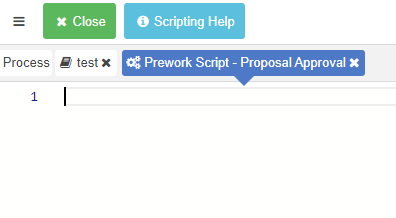
Open the prework of the approval task and add logic like the following:
1 2 | |
This creates a milestone named Send Proposal and sets its due date to one day after the task start time.
Stop the Milestone in Postwork
Open the postwork of the same task and add logic that stops the active milestone when the process is completed:
1 2 3 4 5 6 7 8 9 | |
This ensures the milestone closes only when the expected case-linked work has actually finished.
Create the Form
- Build the proposal form.
- Add a text field such as
ProposalName. - Add a file field such as
ProposalFile.
Create the Channel
- Create a new group channel.
- Enable cases.
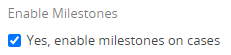
- In channel edit, enable milestones and add the new process under Related Processes.
Create the Case and Run the Process
- Create a new case in the channel.
- Start the related process from the case.
- Submit the proposal form.
At this point the milestone is created automatically for the case.
Observe the Milestone Lifecycle
- Let the due date pass to see the milestone move into the overdue state.
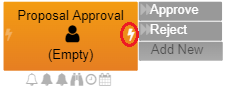
- Review the channel and case screens to confirm the milestone warning and red status.
- Complete the approval task to close the milestone.


Result
The case now tracks user performance through a milestone that starts from process logic, becomes overdue when the due date passes, and closes automatically when the work is completed.
Verify the Result
Create a test case and start the related process. Confirm that the milestone appears with the expected due date, then complete the task and confirm that the same milestone is closed. Exercise an overdue test with a short duration in a non-production domain.
Security and Portability Notes
- Derive the case and milestone from runtime context; do not copy case identifiers between environments.
- Verify time-zone and calendar behavior before using milestone durations for service reporting.
- Restrict case visibility so milestone names and timing do not disclose sensitive work to unrelated users.