Update Case Tags from Process Data
Scenario
Use this example when a process should add case tags automatically from data entered by the user. The scenario uses a CRM-style channel so the case can collect tags derived from the process form.
What You Will Learn
- read submitted values from process XML
- update the current case tag collection in postwork
- verify the tags in the case and channel views
Difficulty and Estimated Time
- Difficulty: Intermediate
- Estimated time: 20 minutes
Assumed Knowledge
You should be familiar with cases, channels, process forms, XML paths, and postwork scripts.
Required Reading
Prerequisites
- permission to create folders, processes, and channels
- access to postwork scripting
- case handling enabled in the target channel
Steps
Create the Folder and Process
- Create an application folder, for example
Order Information. - Create a new process in that folder and open it in edit mode.
Build the Tasks
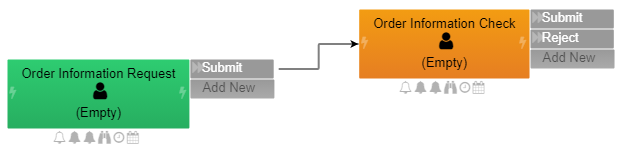
- Rename the opening task to
Order Information Request. - Add the
Submitaction. - Create the second task
Order Information Check. - Mark the task that should interact with the case as Is Case Handler.
Add the Tagging Logic
Open the postwork of the case-handling task and add code similar to the following:
1 2 3 4 | |
This postwork takes values from the form data and writes them into the case tag collection.
Design the Form
- Open the form for the process.
- Create the row-content layout for the order information fields.
- Add a text field for the customer name.
- Add a dropdown for the product type and populate the static list items.

Save and Commit the Process
- Close the designer tab.
- Commit the process changes.
- Close the process editor.
Create the Channel
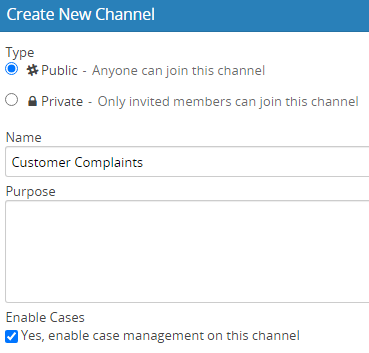
- Create a new group channel for customer complaints or CRM follow-up.
- Enable cases for the channel.
Add the Related Process
- Open channel edit.
- Go to Related Process.
- Add the process you created and save the channel.

Create a Case and Start the Process
- Create a new case in the channel.
- Open the process from the case page.
- Fill in the customer name and select the product type.
- Submit the first task and then complete the follow-up task.

Verify the Tags
Return to the case or the channel case list and confirm that the tag values were added from the submitted process data.

Result
The case now receives tags automatically from the process form, allowing the channel team to filter and categorise cases without adding tags manually.
Verify the Result
Create a test case, start the related process, and submit two different tag values. Confirm that the case shows the expected tags without duplicates. Test an empty value and confirm that no blank tag is added.
Security and Portability Notes
- Case tags can be visible to a broad channel audience; do not include secrets or unnecessary personal data.
- Resolve the current case through process context and do not embed a case or channel identifier.
- Keep the tag vocabulary stable when channel filters or reports depend on it.